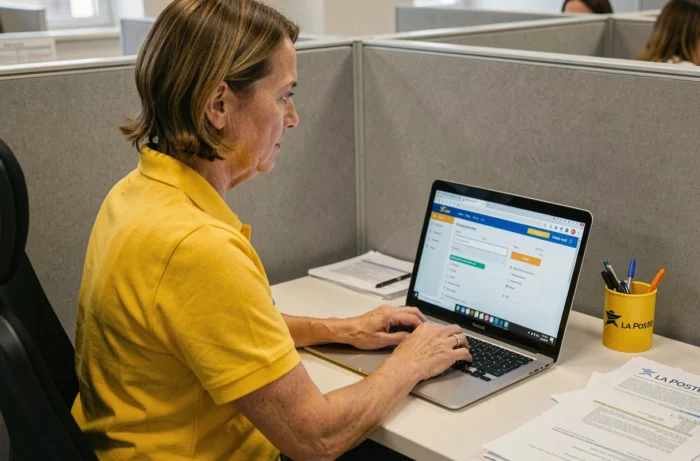
The GTA module (Time and Activity Management) of La Poste allows agents to view their schedules, request leave, and track their hour counters. Access is through the MaBoxRH portal, a web interface that centralizes the group’s HR tools. Despite this apparent simplicity, connecting from a personal device often blocks users, usually for easily fixable technical reasons.
Virtual keyboard and account lockout on MaBoxRH
Have you ever seen your login screen display a clickable numeric keypad instead of a classic input field? That’s the virtual keyboard of MaBoxRH. It is designed to protect the password against keylogging software.
The numbers change position with each page load. You need to click on each number of the password, one by one. For visually impaired agents, an “Activate sound” button allows them to navigate through the numbers using the tab key and hear them before confirming with the Enter key.
A common trap lies just after this. The portal applies an automatic lockout after several failed attempts. If the virtual keyboard misleads you and you enter the wrong code multiple times, the account gets temporarily locked. There’s no point in trying again immediately, as each new attempt extends the lockout. Wait several tens of minutes before trying to log in again.
For those who wish to access gta La Poste extranet from home, this lockout mechanism is the primary source of frustration. It’s better to take your time on the virtual keyboard than to find yourself locked out for half an hour.

Connecting to GTA La Poste from a personal device: technical prerequisites
Good news: no VPN is required to connect to MaBoxRH from home. The URL maboxrh.laposte.fr is directly accessible via a standard web browser. However, several technical settings are necessary for the interface to function properly.
JavaScript, cookies, and browser extensions
The GTA module relies on dynamic content. If JavaScript is disabled in your browser, the login page will not load the virtual keyboard and will remain blank. Cookies must also be accepted for the domain laposte.fr; otherwise, the session will not be maintained between pages.
An ad blocker or a security extension may interfere. Extensions like uBlock Origin or Privacy Badger sometimes block the scripts necessary for the virtual keyboard to function. Before contacting support, test the connection in a private browsing window, where extensions are disabled by default.
- Check that JavaScript is enabled in your browser settings (Chrome: Settings, Privacy, Site Settings, JavaScript)
- Allow cookies for the domain laposte.fr and its subdomains
- Temporarily disable blocking extensions or use private browsing
- Prefer an up-to-date browser (outdated versions may cause compatibility issues with the virtual keyboard)
Two-factor authentication outside the internal network
Since 2024, La Poste has been gradually rolling out two-factor authentication for external logins. A six-digit code generated by an application (like Google Authenticator) may be required after entering the password on the virtual keyboard.
If you haven’t set up this step yet, your manager or local HR can guide you. The setup is done only once, but you need to have the application installed on your phone before starting the procedure.
Recognizing the correct URL and avoiding phishing on GTm Extranet
Phishing campaigns regularly target La Poste agents. The scenario is simple: a message invites you to reconnect to GTm Extranet via a link that mimics the MaBoxRH interface. The group’s logo, the HR identifier field, everything looks similar.
An internal recommendation circulated since 2024 is clear: never access GTm via a search engine. Sponsored pages or misleading results may appear before the legitimate site. Type maboxrh.laposte.fr directly into your browser’s address bar.
- Ensure that the URL starts with https://maboxrh.laposte.fr (the padlock alone is not enough; fraudulent sites have it too)
- Never click on a link received via SMS or unsolicited email asking you to reconnect
- If in doubt, contact support at [email protected] before entering your credentials
- If you entered your codes on a suspicious site, immediately change your password and report the incident to your local HR
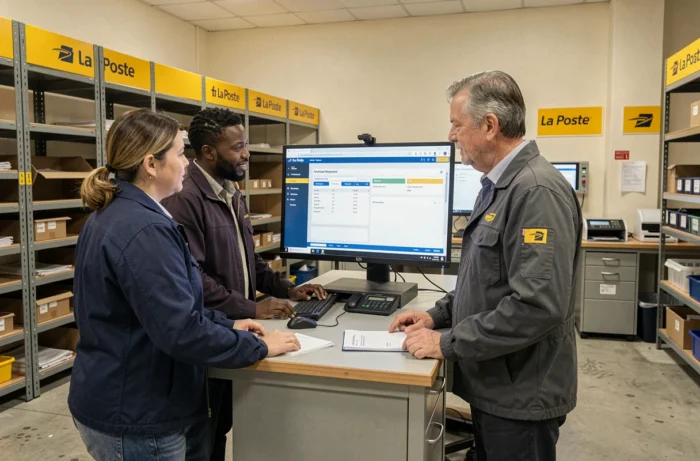
GTA dashboard: what is accessible once logged in
Once logged in, the GTA module in MaBoxRH provides access to work time and absence management. The interface appears as a dashboard where the agent can find their schedule, hour counters, and leave balances.
The leave request is made directly from this dashboard. The process goes through hierarchical validation: the employer or manager receives the request and can accept or reject it from their own access. The employee can track the status of their request (pending, approved, rejected) in the same interface.
Control of personal data (address, bank details, family situation) is not done in the GTA module itself but in other sections of MaBoxRH. For any corrections related to this information, support recommends going through your local HR rather than looking for an online form.
The convergence between GTm Extranet, MaBoxRH, and the Smart Portal, initiated in 2024, has simplified access to these services by grouping them under a single interface. This change has also multiplied the possible login paths, which explains the confusion of some agents regarding the different names. GTm Extranet, GTA La Poste, MaBoxRH: these names refer to modules of the same HR portal.