
Printing a PDF document generally poses no difficulty until the content exceeds the available sheet size. Display, technical plan, poster, or large-format chart: the PDF is then printed in a reduced version, sometimes unreadable. Knowing how to print a PDF across multiple pages requires mastering a few precise settings in the reading software, as well as preparing the file in advance to avoid unpleasant surprises during assembly.
Overlapping and Cut Marks: Settings Often Overlooked in Tutorials
Most guides focus on activating the Poster mode in Adobe Acrobat Reader. This mode slices a large PDF page into several standard sheets that are then assembled. The mechanics are simple, but two parameters radically change the final result.
The first is the tile overlap. When each printed sheet ends exactly where the next one begins, even the slightest misalignment during assembly creates a white line or visible offset. By increasing the overlap area, you gain a margin of error that makes assembly much more tolerant of small inaccuracies.
The second often-overlooked parameter concerns the cut marks activated in the print options. These small lines printed at the corners of each tile indicate precisely where to cut the paper before juxtaposing it. Without them, you work by estimation, and the final result loses sharpness. Recent versions of Adobe Acrobat Reader offer these two settings directly in the print dialog under Poster mode.
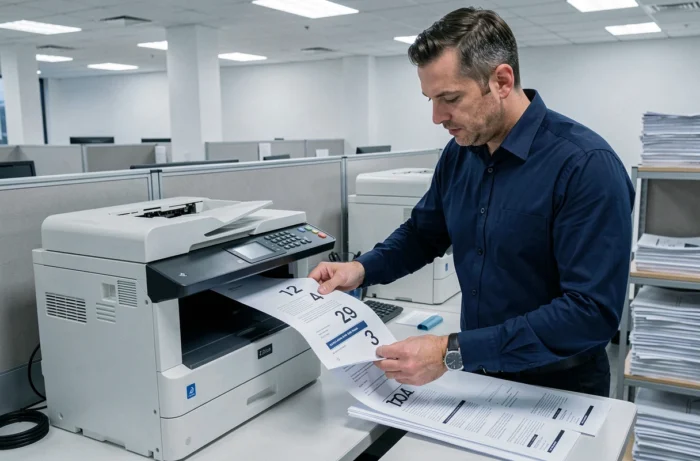
A detailed guide explains how to print a PDF file across multiple pages by describing each step of the process, from selecting the mode to adjusting the scale.
Poster Mode in Adobe Acrobat Reader: PDF Print Settings to Adjust
In Acrobat Reader, the path is File, then Print. The Layout section offers several options, including the Poster button (or Affiche depending on the language version). Once this mode is selected, three sliders deserve special attention.
- Mosaic Scale: it determines the enlargement factor of the document. A scale that is too high multiplies the number of sheets without any real gain in readability. Adjusting this value according to the desired final format avoids wasting paper.
- Overlap: expressed in millimeters or inches, it defines the common band between two adjacent sheets. A few millimeters are sufficient for a clean assembly, but on a technical drawing with fine lines, increasing this value provides appreciable security.
- Cut Marks and Labels: checking this option prints fine lines and tile numbers on each sheet, simplifying reassembly when the final document includes many sheets.
The print preview displays the total number of sheets generated. Checking this number before starting the print job helps avoid consuming an entire ream for an oversized result.
Print a Multi-Page PDF Without Adobe: Alternatives on Windows and macOS
Adobe Acrobat Reader remains the reference for Poster mode, but it is not the only option. On Windows 10 and 11, the virtual printer Microsoft Print to PDF allows you to prepare a multi-page layout without installing third-party software. For example, you can combine several pages onto a single sheet (N-up mode) through the system’s standard print dialog.
However, this virtual printer does not offer tiling of a large-format document. For this specific use case, online tools like Smallpdf provide a compression or splitting step before the actual printing. Compressing the PDF file before printing reduces processing errors by the printer, especially on entry-level models with limited internal memory.
On macOS, the native print window allows you to choose the number of pages per sheet (2, 4, 6, 9, or 16), but the Poster mode is not integrated into the system. You need to use Acrobat Reader or a dedicated utility to achieve true mosaic tiling.

Preparing the PDF File Before Printing: Size, Resolution, and Page Format
A heavy PDF file, loaded with high-resolution images, can cause slowdowns or printing errors. Compressing the document before sending it to the printer is not just a matter of convenience: a PDF that is too large can be silently truncated by some printers that lack buffer memory.
The resolution of the content also plays a role. A PDF intended for screen display (72 dpi) will yield a blurry result once enlarged across multiple sheets. For a correct rendering after assembly, the source document should ideally have been generated with a resolution suitable for paper printing.
Source Page Format and Final Scale
The page format in the PDF determines the calculation of the mosaic scale. A document originally in A1 format cut onto A4 sheets produces a predictable number of tiles. A PDF without a standard format (custom dimensions from CAD software, for example) can yield unexpected results if the preview is not checked.
Checking the document properties (File, then Properties in Acrobat Reader) allows you to know the exact dimensions of the source page and anticipate the number of sheets needed.
Multiple PDF Pages on a Single Sheet: The Reverse Case
The opposite need arises just as frequently: grouping several pages of a document onto a single A4 sheet to save paper. In Acrobat Reader, the Multiple button (in the same Layout section) offers this function. You select the number of pages per sheet, the order of arrangement, and the orientation.
The Multiple option does not reduce the file size, it only modifies the layout at printing. The text becomes smaller as the number of pages per sheet increases. Beyond four pages on an A4, readability drops significantly for regular text.
This function is native on Windows via the system print dialog, making it accessible from any application capable of opening a PDF, including a web browser.
Whether you are looking to enlarge a plan on an entire wall or condense a fifty-page report, the result depends less on the chosen software than on the methodical verification of three elements: the source format of the PDF, the mosaic or multiple layout settings, and the print preview. Taking thirty seconds to check these parameters avoids most unnecessary reprints.